
Have a Byta voucher code? Sign in to the account that should receive the benefit, then redeem the code from Settings. The process usually takes less than a minute.
Redeem your voucher
Choose your device. The voucher controls are in the Account section of Settings.
1
Open Settings
Sign in to Byta AI, then open Settings from your account control.
2
Select Redeem
In the Account section, find Redeem voucher and select Redeem.

3
Enter the code
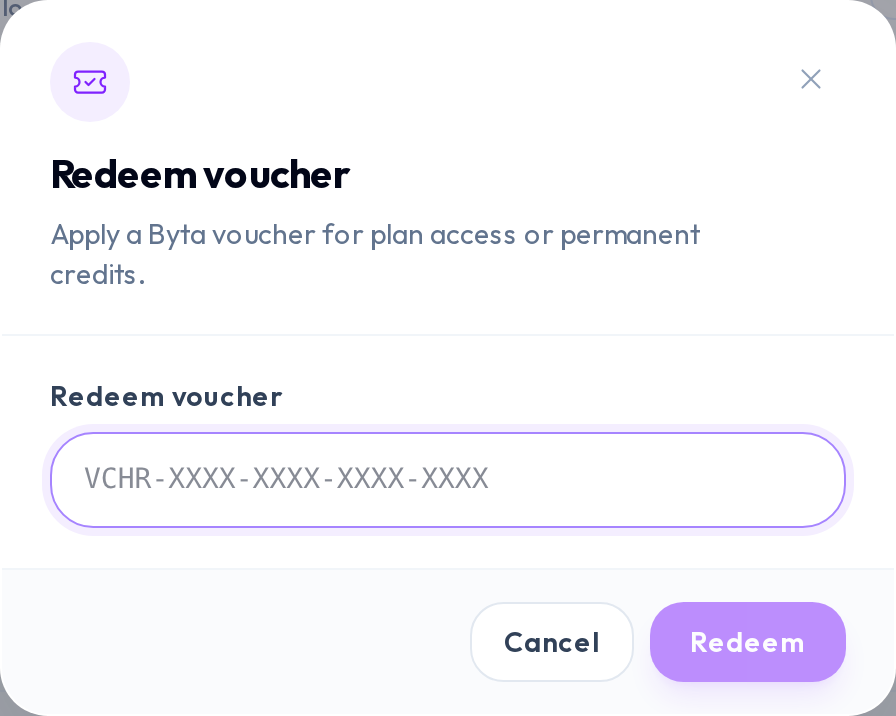
Paste the complete voucher code into the dialog, then select Redeem. Byta shows a confirmation when the benefit has been applied.
What happens after redemption
Byta shows what the voucher added and refreshes your account balances. The exact benefit depends on the campaign.
- Plan-access vouchers show the plan and its expiry when the access is temporary.
- Credit vouchers add permanent credits to your account balance.
- Some vouchers include both plan access and permanent credits.
If the code is not accepted
Read the message shown by Byta first. It usually identifies the condition that stopped the redemption.
- Copy the complete code and remove spaces before or after it.
- Check whether the promotion has expired or reached its redemption limit.
- Check whether the voucher requires a minimum plan.
- A plan voucher cannot replace an active subscription, stack onto a current paid plan, or upgrade a Restricted account.